 Forge
Forge
How Forge works
Forge is a strength-training app for iPhone. You log your workouts, and a dragon companion grows alongside you. This page walks through what the app does and how to use it.
Forge is in private beta, so a few details may change before launch. Last updated November 10, 2026.
Getting started
Sign in with your Apple ID. Forge doesn’t ask for a password, and it doesn’t need your email address to get going. Then pick a name and an accent colour, and your companion arrives as an egg.
Home is where you’ll start most days: your dragon, your total volume, how close you are to its next stage, and a Log Workout button. The tabs along the bottom take you to Templates, Progress and Settings.
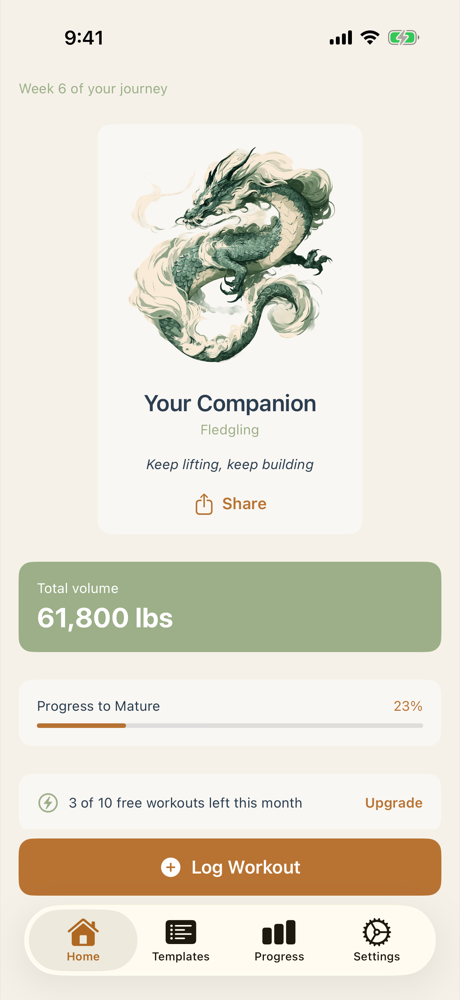
Your dragon
Your companion is a reflection of your training, with two things shaping how it looks.
Stage: how much you’ve lifted, ever
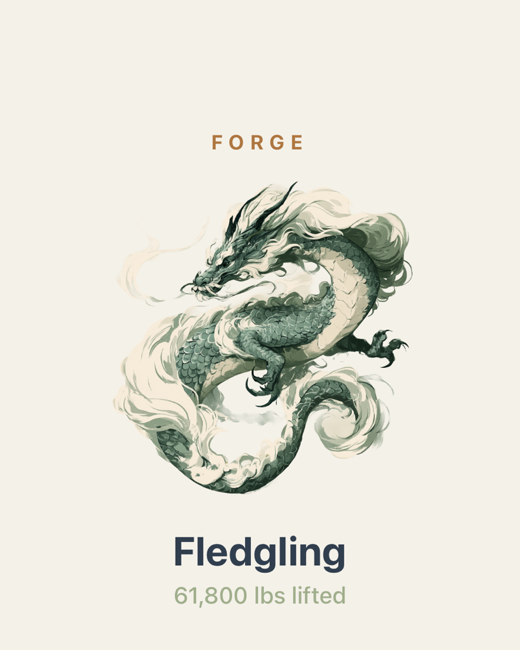
Every set adds its weight × reps to your lifetime volume. As that total grows, your dragon grows with it, and the app celebrates each change.
- Egg
- Hatchling
- Fledgling
- Mature
Mood: how often you’ve trained lately
Its demeanour follows the number of days you trained in the last seven.
- Gentle: fewer than two days. It rests with you.
- Balanced: two or three days.
- Fierce: four or more days.
There are no leaderboards, no broken-streak scolding and no guilt. If life gets in the way, your dragon just waits for you.
Timed exercises (like planks or cycling) count as a training day for your dragon’s mood, but they don’t add volume, so they don’t move its stage.
Logging a workout
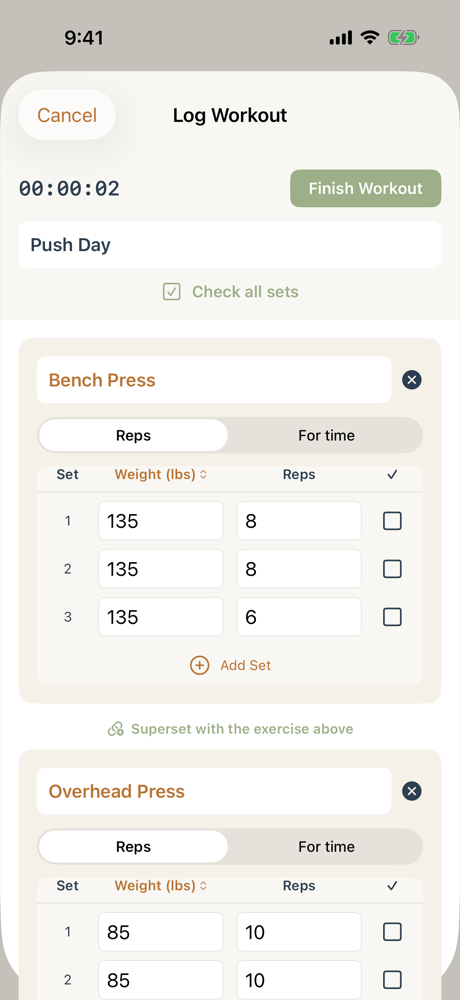
Tap Log Workout, give the session an optional title, and add exercises. Start typing a name and Forge suggests matches from its exercise library. Each exercise is a simple table: one row per set, with weight and reps.
- Add Set copies the previous set, so a repeat of 135 × 8 is one tap.
- Tick a set as you finish it. Check all sets ticks every one at once.
- For time: switch an exercise from Reps to For time for things like planks, walks and cycling.
- Supersets: link an exercise to the one above it.
- PR badge: a ticked set that beats your history gets a PR badge.
Finishing up
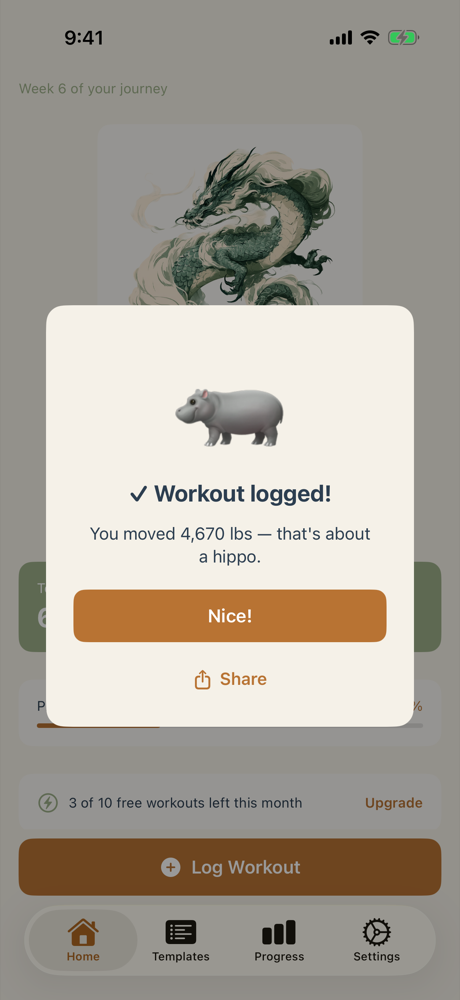
Tap Finish Workout and you get a “Workout logged” card comparing the weight you moved to something familiar, like a hippo. If your dragon reaches a new stage, you’ll see that celebrated here too.
Spotted a typo later? Expand the workout in Progress to edit or delete it.
Templates
If you repeat the same days, save them. A template remembers its exercises, sets, weights and reps, so starting Push Day fills the logging screen for you. Adjust whatever changed today and finish as normal.
- Create one from scratch with the + button, and reorder its exercises.
- On any logged workout in Progress, choose Save as template.
- Coming from another app? The import button on this tab creates templates from a CSV file (they count toward the Free plan’s template limit).
Pounds or kilograms
Pick a default in Settings, then override it wherever it makes sense: per exercise, or per template. You can even mix units in one workout. Tap the unit heading above the weights and switch; anything you already typed converts for you.
Progress
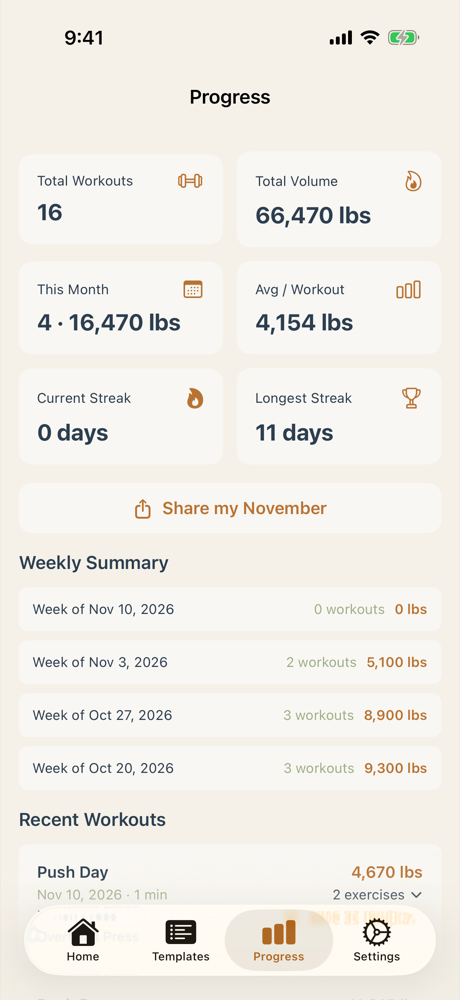
The Progress tab turns your history into numbers you can glance at: total workouts, total volume, this month, your average per workout, and your current and longest streaks. Below that is a week-by-week summary, and every workout you’ve logged. Tap one to expand its sets.
Share my month builds a recap card of your month so far that you can send to a friend or post.
Sharing
Forge makes cards that are easy to share, and nothing is posted unless you choose to.
- Your dragon: tap Share on Home for a card with your companion’s stage and lifetime volume.
- A workout: tap Share on the “Workout logged” card.
- Your month: a recap from the Progress tab.
Cards go through the normal iOS share sheet, so you pick where they land.
Rest timer and reminders
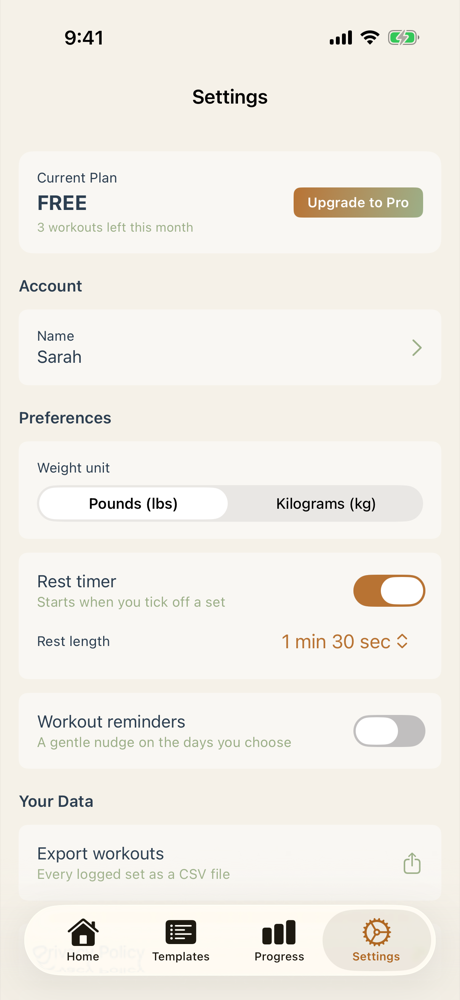
Rest timer. Turn it on in Settings and a countdown starts every time you tick off a set. Choose how long it runs.
Workout reminders. A gentle nudge on the days you choose. Forge skips it on a day you’ve already logged a workout. You’ll need to allow notifications for Forge in iOS Settings first.
Your data
It’s your training history, so you can take it with you.
- Export workouts (Settings → Your Data) saves every logged set as a CSV file you can open in a spreadsheet.
- Delete Account (bottom of Settings) permanently removes your account, your workouts and your companion’s progress. It can’t be undone.
Forge has no ads and no third-party tracking. The Privacy Policy spells out exactly what it collects.
Free and Pro
Forge will have two plans. The core of the app, logging your training and growing your dragon, is free. Pro is an optional subscription for people who want no limits.
Free
- Your dragon, stages and moods
- Up to 10 logged workouts a month
- Up to 3 saved templates
- Everything else: progress, sharing, reminders, the rest timer and export
Pro
- Everything in Free
- Unlimited workouts
- Unlimited templates
The beta is where these limits get tested, so they may change before launch. The app shows where you stand, with a note on Home like “3 of 10 free workouts left this month”. When Pro launches, you’ll see its price in the app before you subscribe, and you can manage or cancel it any time in your App Store account settings.
Questions
Is Forge available to download?
Not yet. It’s in private beta on TestFlight, for iPhone. Request an invite from the home page and I’ll send one by email.
What do I need to run it?
An iPhone and an Apple ID. Beta invites come through Apple’s TestFlight app.
Does it work offline?
Yes. If you’re offline at the gym, Forge opens and lets you log your workout, and it syncs once you’re back online.
What if I miss a week?
Nothing bad happens. Your dragon’s mood relaxes to gentle, and it keeps every stage it has earned. There’s no penalty.
Is there an Android version, an Apple Watch app, or exercise videos?
Not today. Forge is built and maintained by one person, so I’m keeping it focused. Tell me what you’d like to see.
I found a bug, or I have an idea.
Please email privacy@forge-app.ca. Beta feedback is exactly what this stage is for.
Want to try it?
Request an invite